
Note : PDF to Excel conversion cannot preserve the exact layout and formatting. Nitro PDF Pro generates a reusable Excel file that retains the visual appearance and structure of the original PDF document.
- Navigate to the Convert tab
- Click the To Excel button

- The Convert PDF to Excel window opens
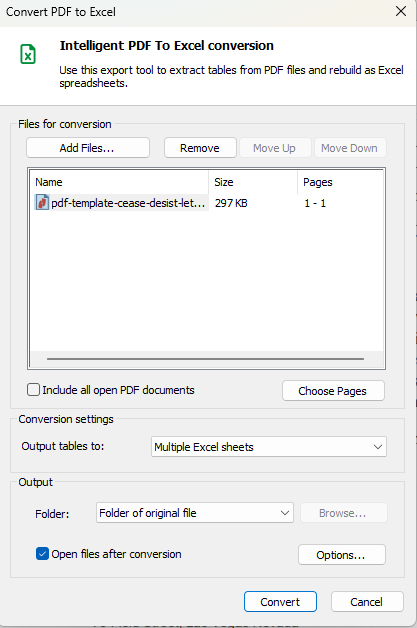
- Click the Add Files button to add your files
- Click Remove to remove selected files
- Click Move Up or Move Down to change the file order
- To select specific pages, click Choose Pages
- To include all open PDF documents, select the checkbox
- In the Conversion settings section, select the desired format:
- Single Excel sheet
- Multiple Excel sheets
- Create a sheet per page
- In the Output section, select where to save the files:
- Folder of original file
- Specific folder
- Ask during the process
- Click Convert to start the process, or click Cancel to stop it
Excel Settings
- Go to Preferences on the Home page
- Alternatively, in the conversion window, click Options
- Go to Conversion
- Select Excel
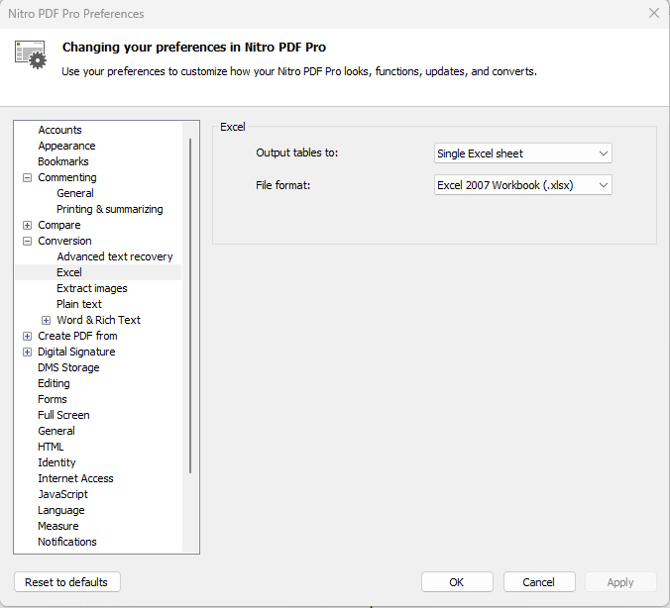
Options
- Select the output table format
- Select the output file format
Last updated: June 2026