
You can export documents in Nitro Sign. You can download a document to your local computer or copy it to a supported cloud storage location.
In addition to downloading completed documents, Nitro Sign lets you download an envelope while it is still waiting for signature. This can help you save or review the current version of an envelope before all recipients have signed.
How to Download and Store your Documents from the eSign Dashboard
1. Select My documents in the left menu of the eSign dashboard
2. In the Single documents tab, select the document you want to download
3. Click the Quick Actions menu icon next to the document name:
-
To copy a document to a supported cloud storage provider, select Copy to storage
-
To save the file to your local machine, select Download as PDF
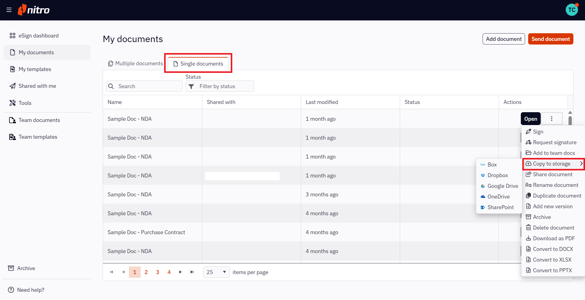
Note: You will be notified once your document has been downloaded or copied to a cloud storage account.
How to Download and Store your Documents from the Document
1. Select My documents in the left menu of the eSign dashboard
2. In the Single documents tab, select the document you want to download
3. Click Open button
4. Select File in the top ribbon:
-
To copy a document to a supported cloud storage provider, select Copy to storage
-
To save the file to your local machine, select Download as PDF
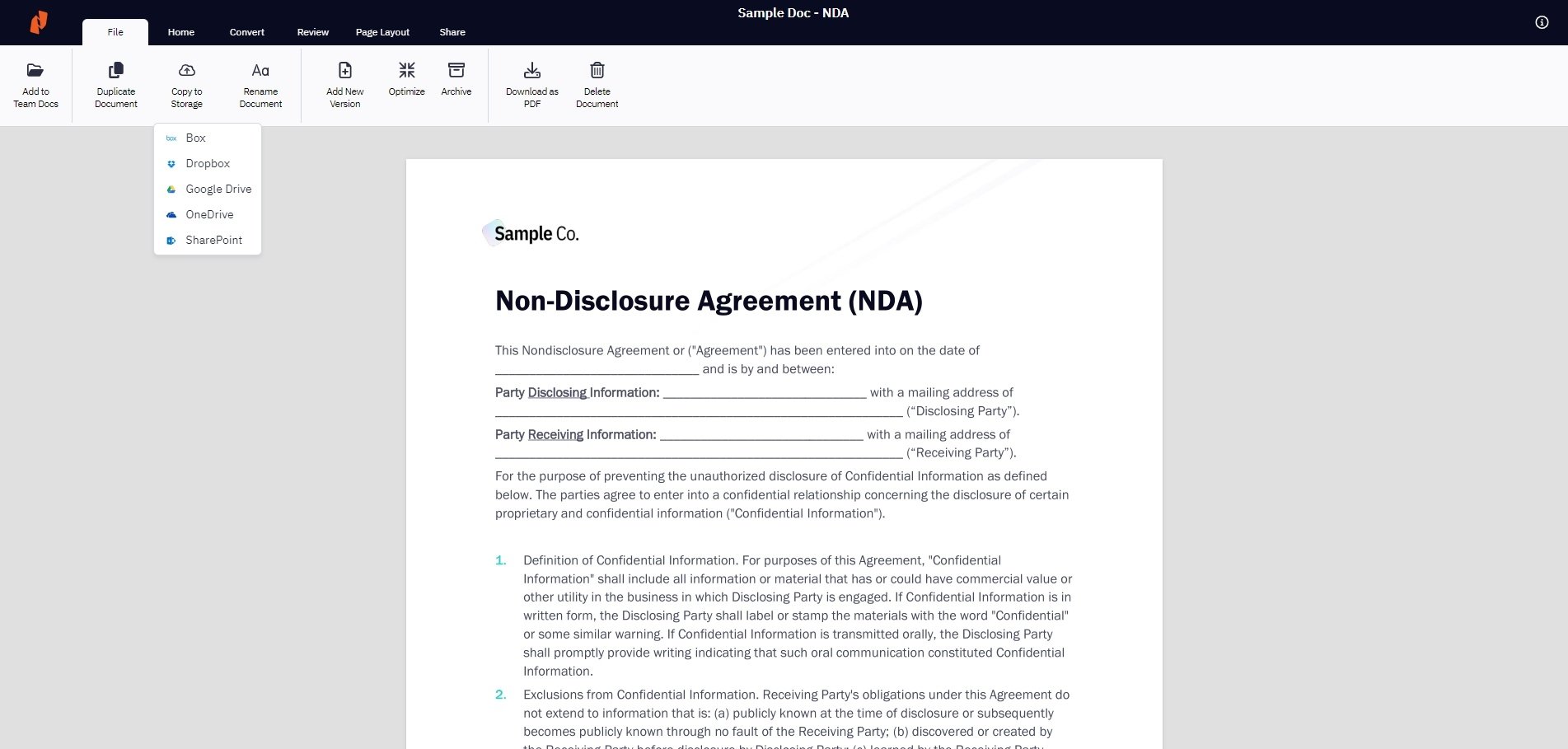
Note: You will be notified once your document has been downloaded or copied to a cloud storage account.
How to Download and Store Documents Sent to you
Note: To be able to download documents that have been sent to you, you need to log into or sign up for an account
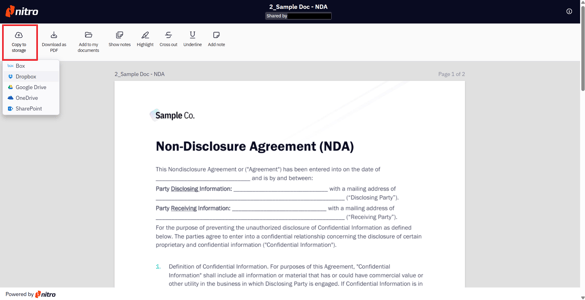
1. When viewing the document sent to you, select Copy to storage or Download as PDF in the top ribbon. Log in or sign up if required. Once logged in, the file will download.
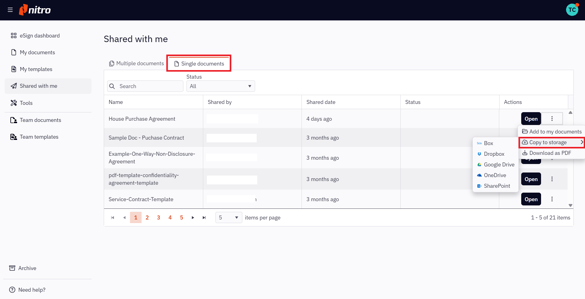
2. To access documents the other users sent you, select Shared with me in the left menu of the eSign dashboard. Then select the Single documents tab. From the Quick Actions menu, you can download the document or copy it to a cloud storage provider.
How to Download an Envelope while it is Waiting for Signature
- Select My documents in the left menu of the eSign dashboard.
- Locate the envelope with a Waiting for signature status which you wish to download
- Select the More actions menu for that envelope.
- Select Download In Progress
- Click Continue to confirm.
Nitro Sign will prepare your documents in the background. Once ready, you will receive an email with attachment or download link. (The download link in the email is valid for 12 hours. If it expires, you can return to the envelope and request a new download at any time.)
Note: Documents downloaded while an envelope is still in progress are not digitally sealed. Completed signatures may appear visually on the document, while pending fields remain blank. The final sealed document is created once the signing workflow is complete.