
SharePoint Online ExtensionFor the deployment guide, click here.
Opening a PDF Document
- Click on the Document view in SharePoint
- Right-click the PDF document you want to open in SharePoint, and choose Open in Nitro PDF Pro. Alternatively, left-click on the file and click Open in Nitro PDF Pro on the toolbar.
- Nitro PDF Pro will give you the option to Checkout and open the document, Open the document without checking out, or Cancel the operation.
- Upon closing, Nitro PDF Pro will prompt the you to Save the document and whether you want the changes to be made available to others. Clicking Yes, will publish a new major version of the file, where you are able to leave a comment.
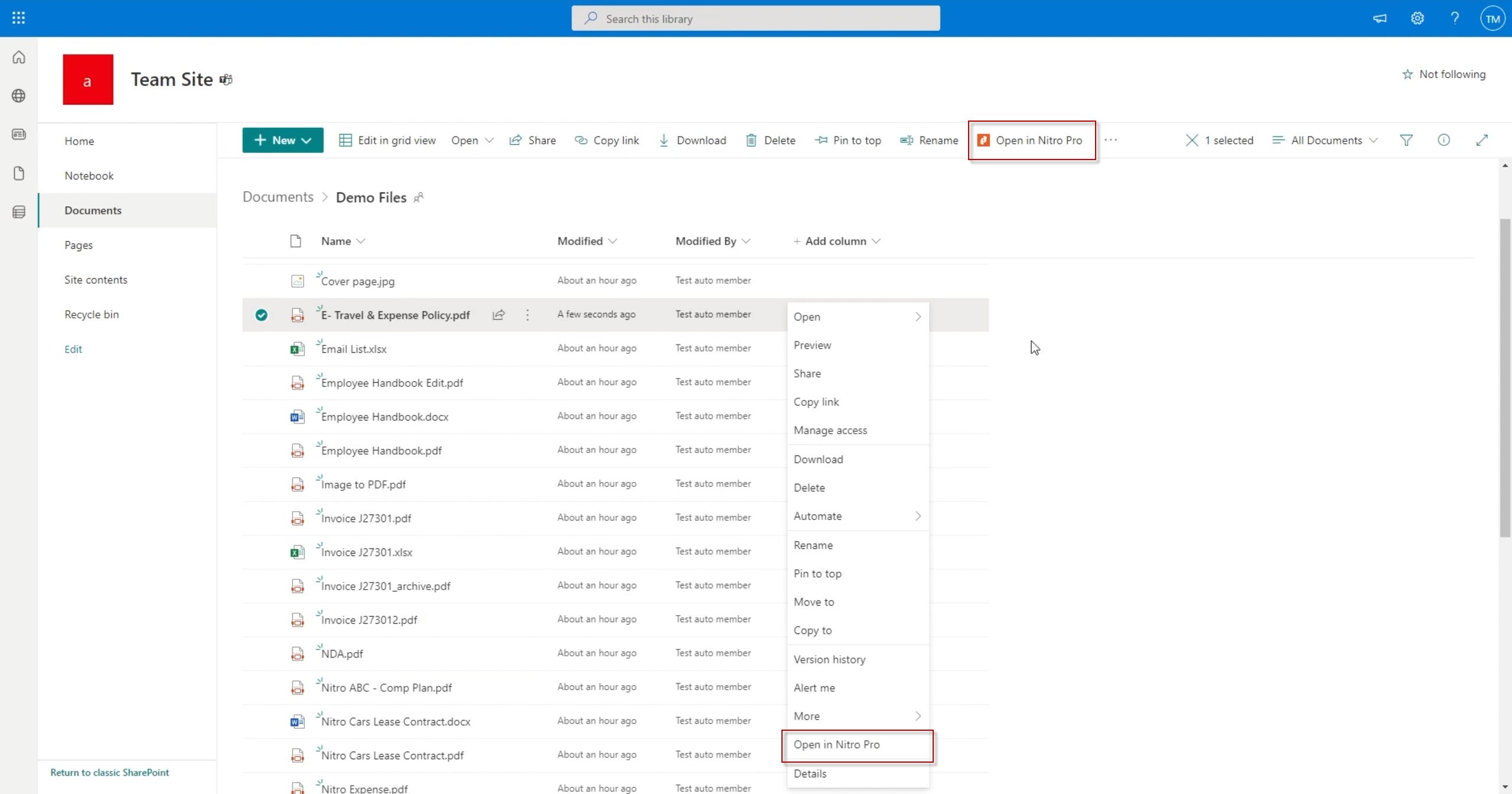
Note: When the document is checked out, no other user is able to modify the document until it is checked in by the same user.
In-app SharePoint IntegrationWith the SharePoint connector the user can access SharePoint as on the site as on a library level. Such a granular access allows the user to visit and working with the documents located only in the sites/libraries of their interest. To add the site or the library as a connector in Nitro PDF Pro, it is enough to copy the URL from the browser to Nitro PDF Pro.
Signing into SharePoint
- Click File > Open
- Choose SharePoint 365, and Nitro PDF Pro will prompt you to login
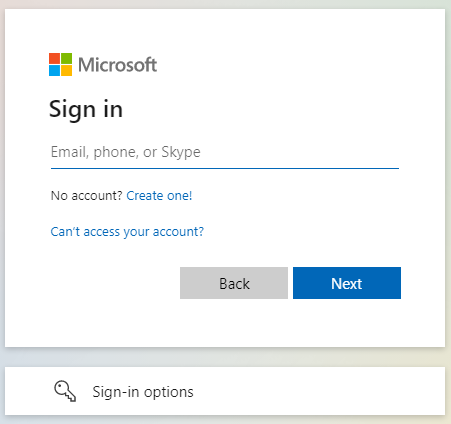
Note: If your organization uses SSO, Nitro PDF Pro will automatically re-direct you to your company's SSO landing page. - Nitro PDF Pro will give you the option to Checkout and open the document, Open the document without checking out, or Cancel the operation.
Change default Open/ Close sctions
- Click File > Settings
- Under DMS Storage, you can change the way Nitro PDF Pro behaves when opening and closing documents from SharePoint.
Last updated: June 2026