
Use notes to add comments or instructions to a PDF. Notes help direct attention to a specific area of the page.
Add a note
- On the Review tab, in the Markup group, click Add Note

- Click the page where you want to place the note
- A note icon appears
- The pop-up note opens automatically
- Enter your text in the pop-up note
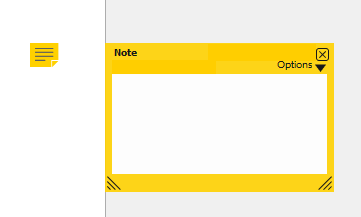
- Click outside the note to finish
To show or hide the note, double-click the note icon.
Note: Drag the note icon to move it on the page.
Edit note properties
- Right-click the note or note icon
- Select Properties
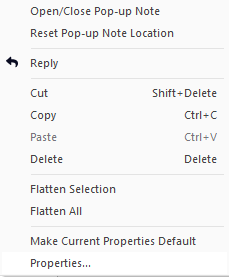
- In the Properties dialog box, use the following tabs:
- General: Edit author and subject
- Appearance: Change the visual style
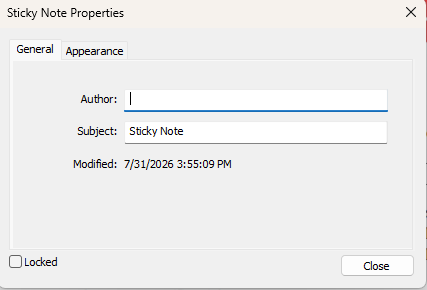
- Click Close
Set default note properties
- Right-click the note or note icon
- Select Make Current Properties Default
All new notes use these properties.
Reply to a note
- If the note is hidden, double-click the note icon
- In the pop-up note, click Options, then select Reply
- Enter your reply
- Click outside the note to finish
Tip: You can add multiple replies to create a message thread.
Delete a note
- Right-click the note icon
- Select Delete
Tip: Notes are on the annotation layer. They do not appear in search results and are not printed unless you print with markup. For more information, see Annotation layer and content layer.
Last updated: June 2026