
Use comments tools to view, organize, summarize, and share feedback in a PDF. You can also import or export comments from multiple reviewers.
Comments pane overview
The Comments pane allows you to:
-
View all comments in one place
-
Sort and filter feedback
-
Navigate to comment locations in the document
-
Manage replies and annotations
Summarize comments
Use this feature to display all comments alongside the document content.
Each comment appears as a callout on the page and is assigned an ID. A summary table lists all comments with details.
Summarize comments as a PDF
- On the Review tab, in the Comments group, click Summarize Comments
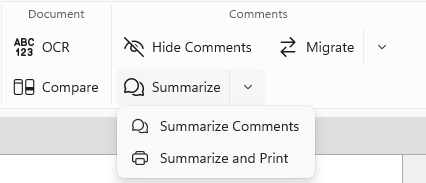
- Select a page range
- Click OK
To configure options, click Settings in the dialog box. 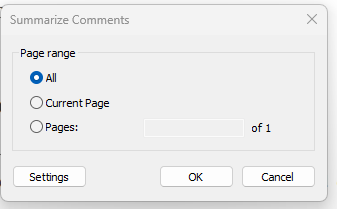
Summarize comments for printing
- On the Review tab, in the Comments group, click Summarize Comments, then select Summarize Comments and Print
- Select a page range
- Click OK
To adjust print settings, click Settings in the dialog box.
To Edit Printing and Summarizing Preferences
- On the File menu, click Preferences. The Nitro PDF Pro Preferences dialog appears.
- Click Commenting to expand the entry, and choose Printing and Summarizing.
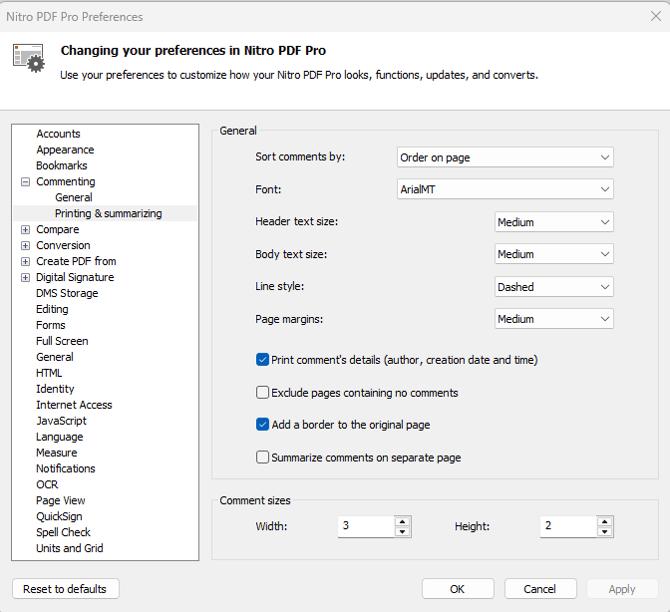
- Configure printing and summarizing settings
- Click Apply and OK to save your settings
Show or hide the Comments pane
- Click the Comments tab in the sidebar to toggle visibility
Sort comments
- Open the Comments pane
- Click Sort By
- Select a sorting option (for example, Type or Author)
Expand or collapse comments
In the Comments pane, you can:
- Expand or collapse individual comments
- Expand or collapse grouped comments
- Select Expand All or Collapse All
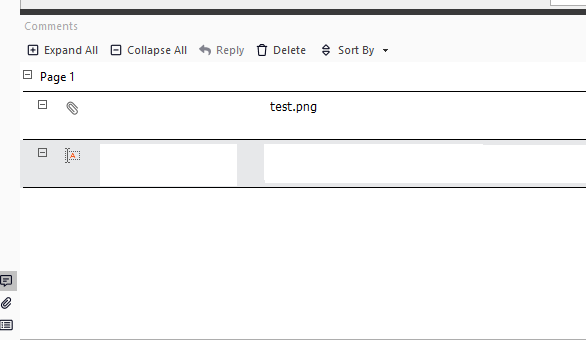
Note: Expand All shows full comment details, including metadata and replies
Delete a comment
- In the Comments pane, select a comment
- Click Delete
Hide or show all comments
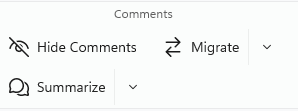
- On the Review tab, in the Comments group, click Hide Comments to toggle visibility
Export comments
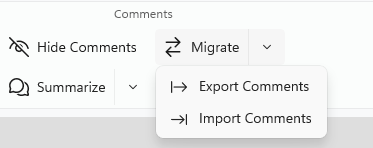
- On the Review tab, click the arrow next to Migrate, then select Export Comments
- Save the file (FDF format)
- Repeat for each reviewed file
Import comments
- Open the original PDF
- On the Review tab, click the arrow next to Migrate, then select Import Comments
- Select an FDF file
- Click Open
- Repeat for additional files
Reply to a comment
- Open a comment or pop-up note
- Enter your reply in the comment field
Replies appear as threaded discussions in the Comments pane.
Last updated: June 2026