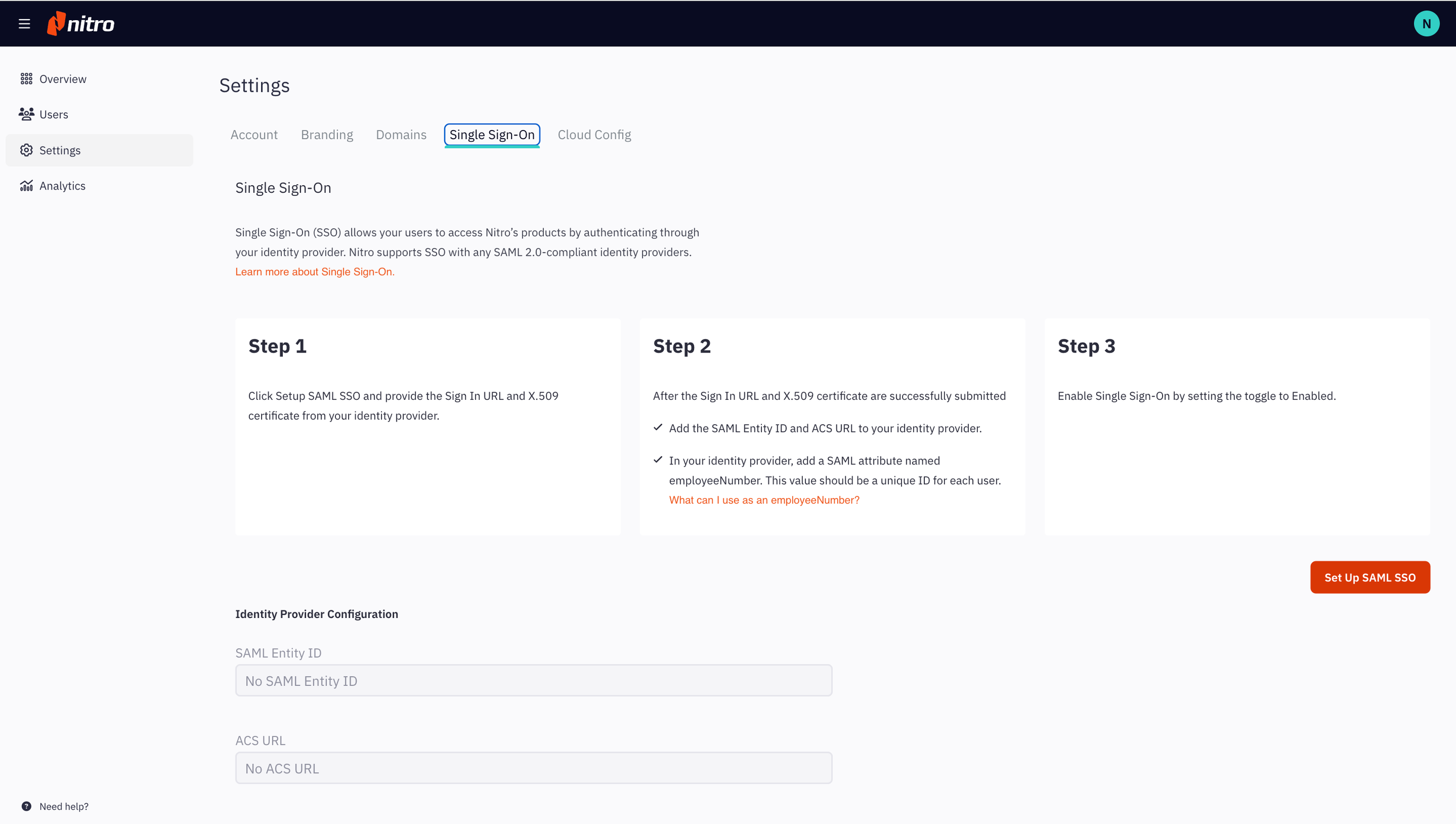
Single Sign-On (SSO) allows your users to access Nitro's products by authenticating through your Identity Provider (IdP). Nitro supports SSO with any SAML 2.0-compliant IdP. You can disable Single Sign-On (SSO) for your team's account at any point through the Nitro Admin portal.
Note: When SSO is disabled, users will need to log in to Nitro applications with their Nitro account username and password.
Select Settings in the left navigation pane and navigate to the Single Sign-On tab
Uncheck Enable Single Sign-On
Note: Disabling SSO will not delete your configuration setup. SSO can be re-enabled at any point as long as your configuration is not removed.
Last updated: July 23, 2025
Was this article helpful?
Thanks for your feedback. We're glad we could help.
Thank you. Your feedback will be used to make future improvements.
Thanks for your interest in Nitro!
For those requiring fewer than 20 licenses, our online store is the fastest way to access the same trusted Nitro PDF tools—optimized for simplicity, security, and speed.
Recommended plans for you:
Nitro PDF Standard
For Windows, Mac, and iOS
For individuals, small teams, and businesses seeking a full suite of PDF editing tools to boost productivity and streamline workflows.