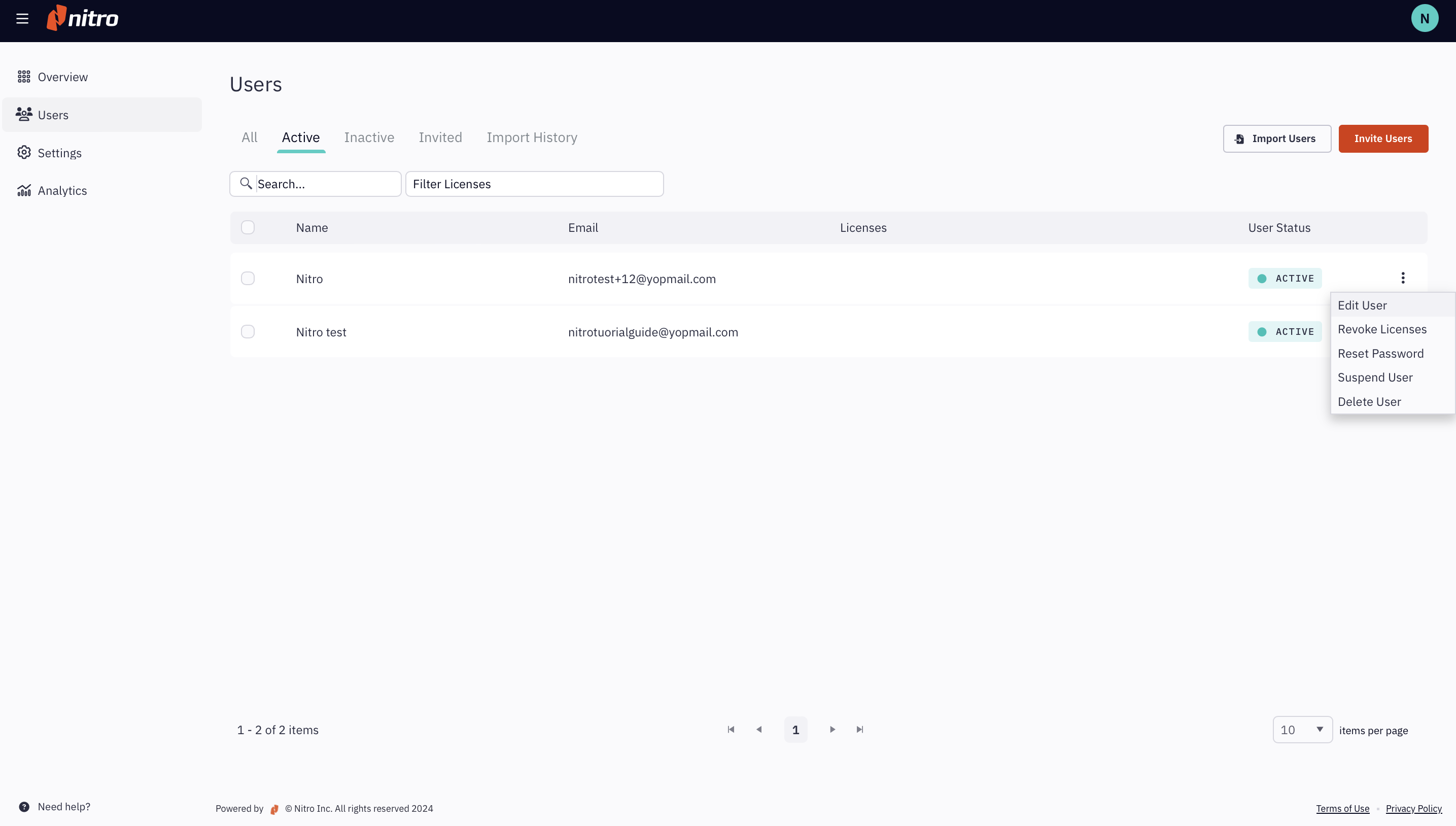
Sélectionnez « Utilisateurs » dans le volet de navigation de gauche, puis accédez à l'onglet « Actifs »
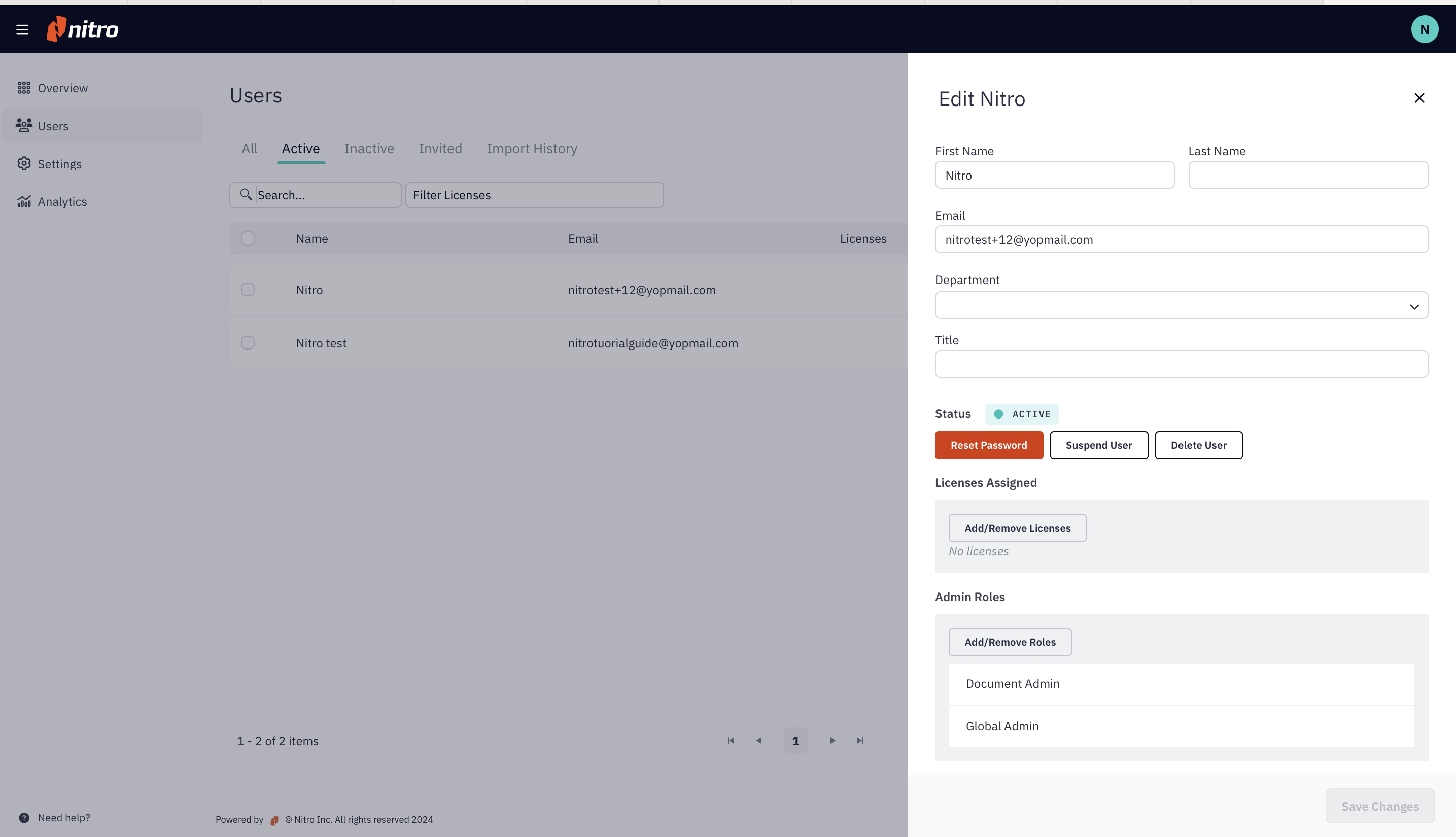
Sélectionnez l'utilisateur souhaité, cliquez sur le bouton « Plus d'options » (trois points) situé à droite de la ligne correspondant à cet utilisateur, puis sélectionnez « Modifier l'utilisateur »
Cliquez sur le bouton « Ajouter/Supprimer des licences » situé sous la section « Licences attribuées »
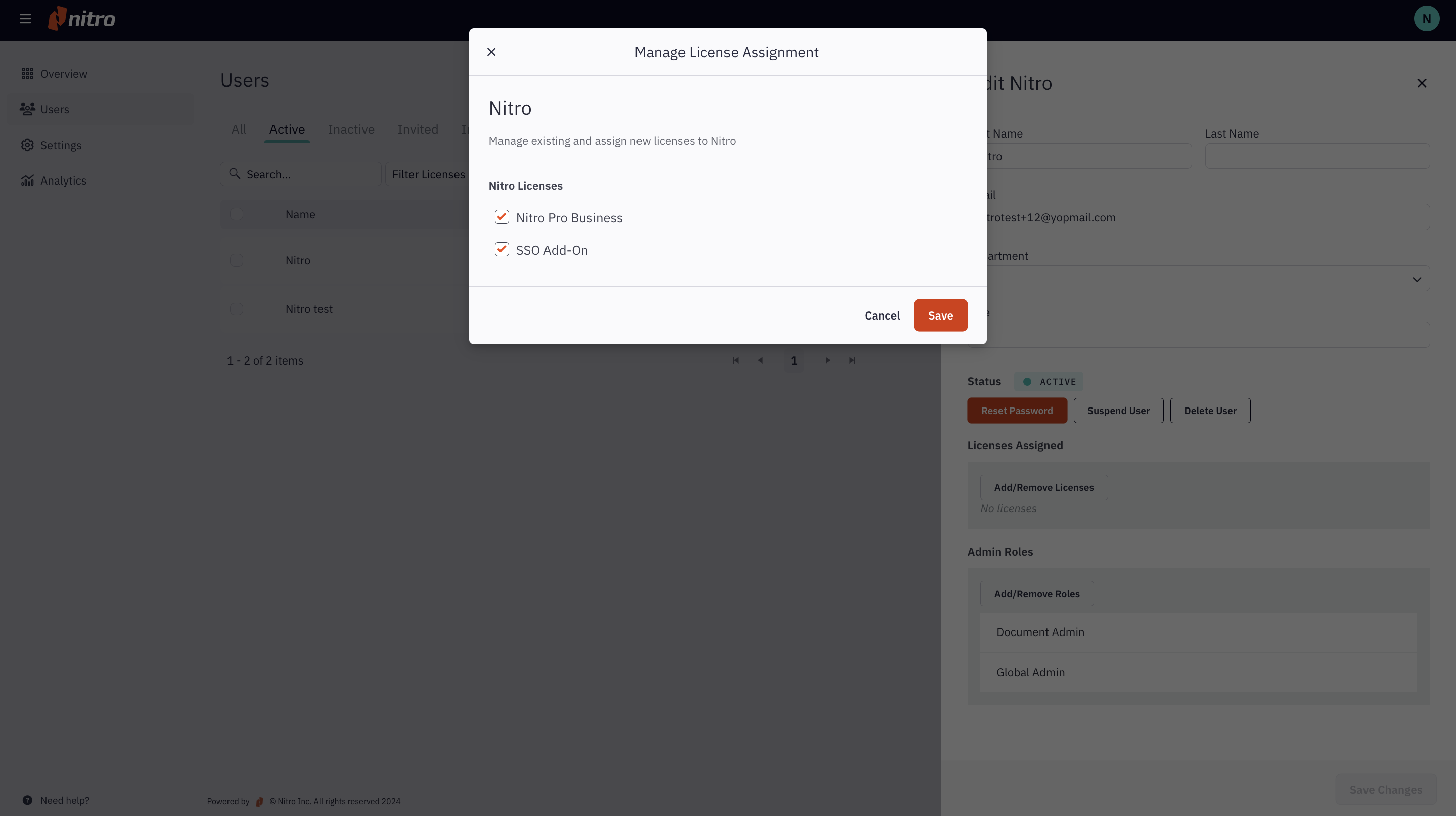
Cochez la case en regard de la licence que vous souhaitez attribuer à l'utilisateur, ou décochez les licences précédemment attribuées que vous souhaitez retirer à l'utilisateur.
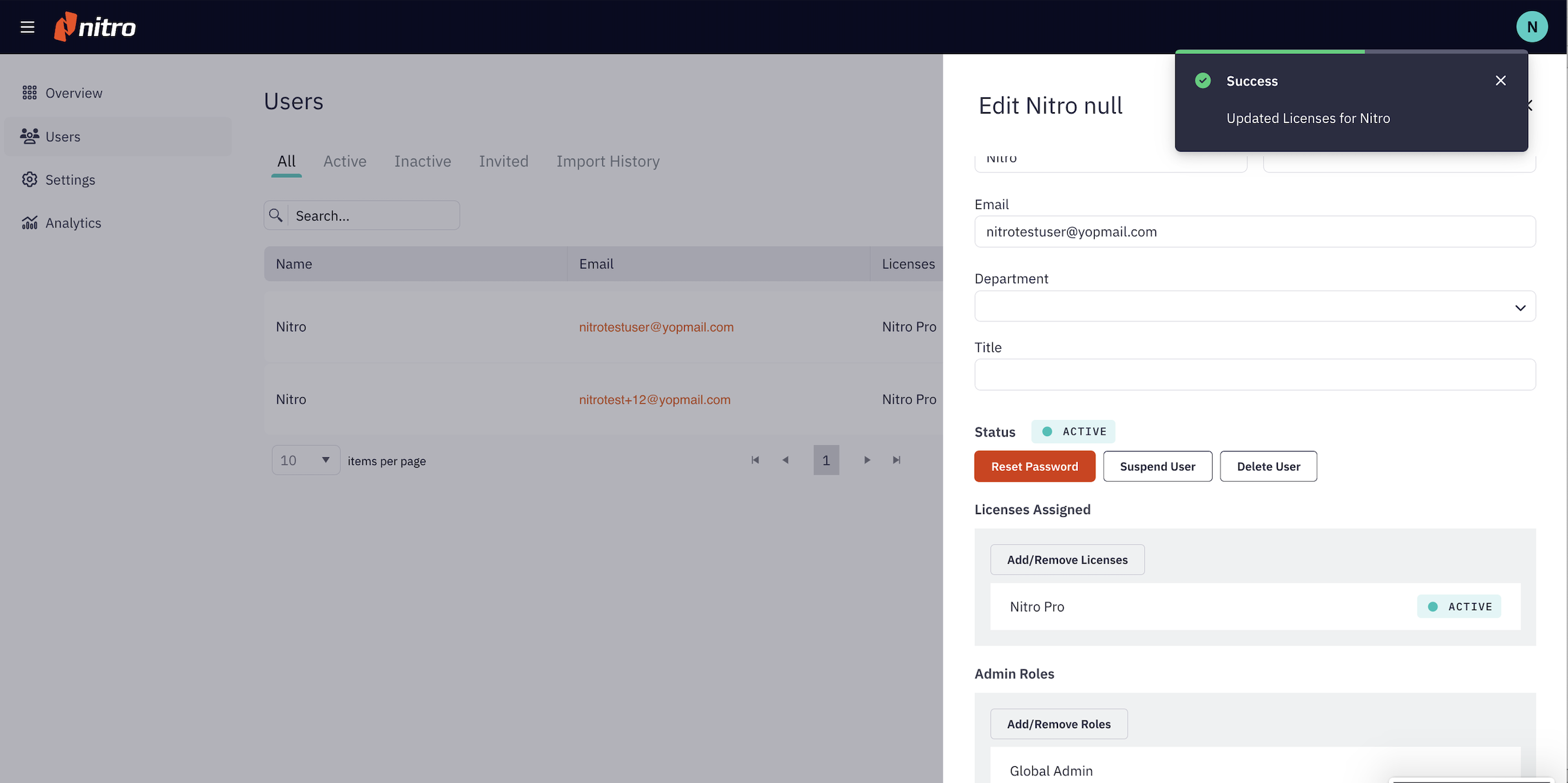
Cliquez sur « Enregistrer » pour terminer.
Last updated: juin 10, 2025
Was this article helpful?
Thanks for your feedback. We're glad we could help.
Thank you. Your feedback will be used to make future improvements.
Thanks for your interest in Nitro!
For those requiring fewer than 20 licenses, our online store is the fastest way to access the same trusted Nitro PDF tools—optimized for simplicity, security, and speed.
Recommended plans for you:
Nitro PDF Standard
For Windows, Mac, and iOS
For individuals, small teams, and businesses seeking a full suite of PDF editing tools to boost productivity and streamline workflows.