
The Role Map shows how content elements in a PDF are assigned structural roles. This helps you verify document structure for accessibility.
For example, in a table you can identify roles such as header rows, data rows, and column headers.
View the role map
- Open the PDF in Nitro PDF Pro
- Go to Accessibility and select Role Map or:
- Open the left sidebar
- Click the Tags icon
- Under Tags, select Role Map

- The Role Map panel opens and displays document role assignments
Review role assignments
- Review how content elements are mapped to roles
- You can verify the structure of the document and identify assigned roles for elements such as tables and headings
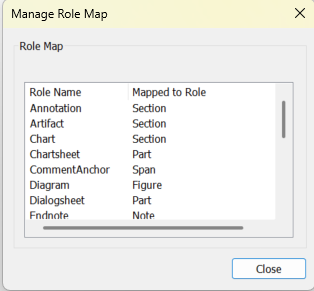
Close the Role Map
- Click Close
- The Role Map view closes and you return to the document
Last updated: June 2026