
Auto tags provide an initial structure for a PDF document. When auto-tagging is applied, Nitro PDF Pro analyzes the document and automatically generates a tag structure.
After auto-tagging is completed, the resulting structure must be reviewed and adjusted manually to ensure accuracy.
Before you start
- Verify whether the document already contains a tag structure
- When auto-tagging is applied, existing tags are removed and replaced
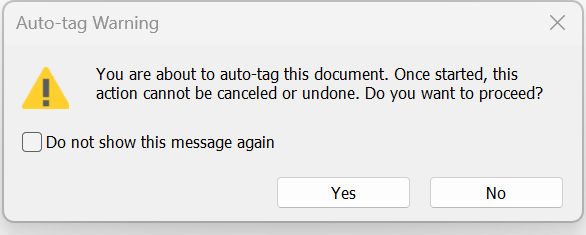
- This action cannot be undone. To preserve existing tags, use manual tagging instead.
Create a document structure using auto tags
- Open the PDF in Nitro PDF Pro
- Select Accessibility > Auto tag

- If the document already contains tags, select Yes to overwrite them
- Review the generated tag structure in the Tags panel
- Save the document:
- Select Save in the top bar, or
- Press Ctrl+S
Last updated: June 2026