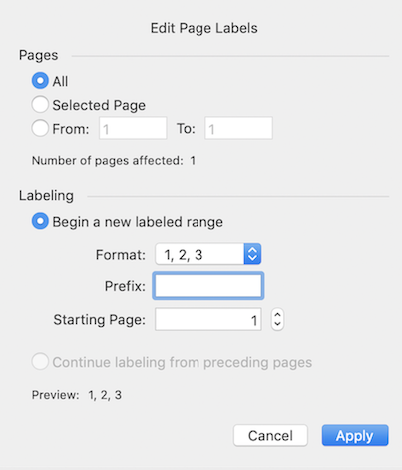
From the menu choose Edit > Headers, Footers, Page Numbers > Page Labels…
Select from the following options for Pages:
All: includes all pages for numbering.
Selected Page(s): includes only the current page selected. If multiple pages were selected before invoking the Edit Page Labels dialog, this option would be chosen automatically.
From: and “To”: numerically specify a page.
Select from the following options for Labelling:
Begin a new labelled page range: applies numbering to all pages or a specific page range as specified in the Pages options.
Format: specifies the format and style of the inserted page numbers. Choose None, Numeral, Alphabetical, Roman.
Prefix: specifies the value (example text: ""Page"") that will precede the page label numbering.
Starting Page: specifies the starting page number that will be inserted.
Continue labelling from preceding pages: select to continue the same numbering scheme as preceding pages. This option is only available when a range of pages is selected or specified.
Note: Select a range of thumbnails by selecting one thumbnail and then Shift-clicking on the thumbnail at the end of the range of pages you want to add.
Last updated: July 29, 2025
Was this article helpful?
Thanks for your feedback. We're glad we could help.
Thank you. Your feedback will be used to make future improvements.
Thanks for your interest in Nitro!
For those requiring fewer than 20 licenses, our online store is the fastest way to access the same trusted Nitro PDF tools—optimized for simplicity, security, and speed.
Recommended plans for you:
Nitro PDF Standard
For Windows, Mac, and iOS
For individuals, small teams, and businesses seeking a full suite of PDF editing tools to boost productivity and streamline workflows.