
You can disable the Internet Access Preferences options in Nitro PDF Pro. This setting helps organizations meet regulatory requirements and enforce internal security policies.
Note: Only qualified IT personnel should perform this task.
Disable Internet Access Preferences
- Open the Window Registry Editor
- Navigate to the following registry key:
For v26:
HKEY_LOCAL_MACHINESOFTWARENitroPDF ProCVsettingsinternet_access_force_disabled
For v14:
HKEY_LOCAL_MACHINESOFTWARENitroPDF Pro14settingsinternet_access_force_disabled
Note: If the key does not exist, create it.
Possible values:
- /b 1 - Block all internet access initiated from files opened in Nitro PDF Pro. Hide the Internet Access option in Preferences.
- /b 0 - Allow internet access. Show the Internet Access option in Preferences.
By default, Nitro PDF Pro allows internet access and displays the Internet Access option in Preferences.
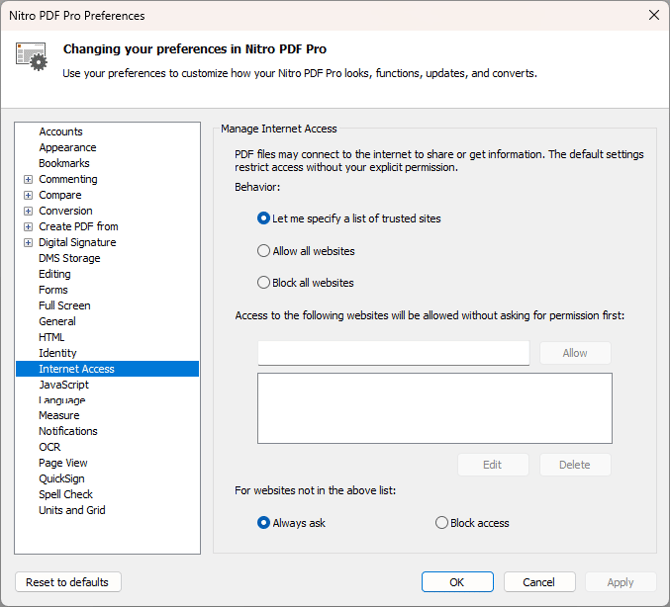
Note: If you set the value to /b 1, Nitro PDF Pro blocks all internet access initiated from files opened in the application and hides the Internet Access option in Preferences. This setting overrides any value configured in the kPrefInternetAccessBehaviour registry key.