
Undo an action
Do one of the following:
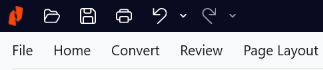
- Click Undo on the Quick Access Toolbar
- Press Ctrl+Z
Undo multiple actions
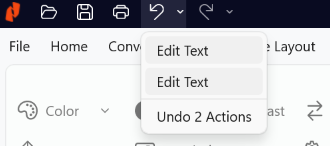
- Click the arrow next to Undo.
The menu lists the actions you can undo. The most recent actions appear at the top of the list. - Move the pointer down the list to select multiple actions
- The total number of selected actions appears at the bottom of the menu
- Click to undo the selected actions
Redo an action
Do one of the following:
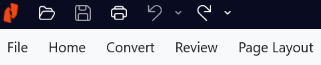
- Click Redo on the Quick Access Toolbar
- Press Ctrl+Y
Redo multiple actions
-
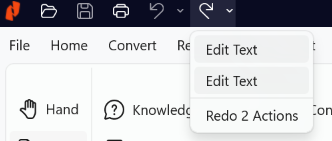
Click the arrow next to Redo.
The menu lists the actions you can redo. The most recent actions appear at the top of the list.
- Move the pointer down the list to select multiple actions.
The total number of selected actions appears at the bottom of the menu. - Click to redo the selected actions
Last updated: June 2026