
Note: To use the following preview and icon features, you need to set Nitro PDF Pro as your default PDF viewer.
Preview a PDF attachment in Microsoft Outlook
When installed on Microsoft Windows Vista or later, Nitro PDF Pro automatically integrates into Microsoft Outlook (version 2007 onwards) to enable a visual preview of a PDF file contained in an email as an attachment.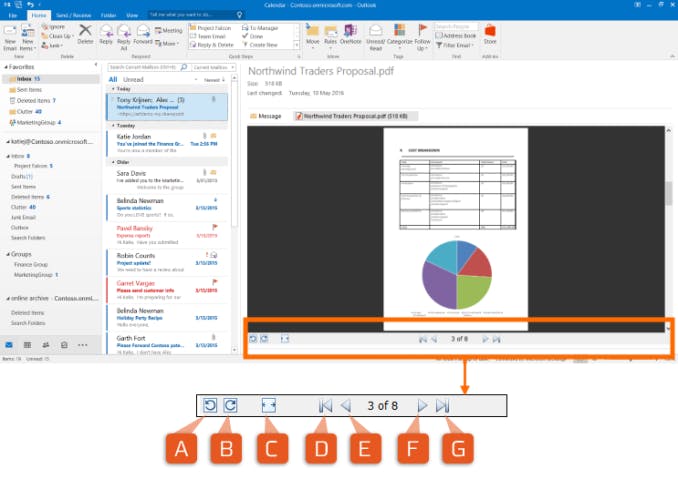
To preview a PDF file attachment in Outlook:
- In Outlook, open some email that contains a PDF attachment
- Click once on the PDF attachment to select it, and observe a Preview file button appear in the message body
- Click Preview file to see a preview of the PDF attachment. Use the page view options to adjust the view:
Preview a PDF file in Windows Explorer
Just as we previewed a PDF attachment in an email, it is possible to preview the content of a PDF document in Windows Explorer when Nitro PPDF Pro is installed on Windows Vista or later.
Icons associated with PDF files in the main pane of Windows Explorer show a preview of the PDF file, which is based on the first page of the PDF document.
This icon preview also applies to the icon in the summary pane at the bottom of the Windows Explorer window.
Tip: You can specify the size of file icons in the View menu. Windows does not apply previews to small icons if you select Small icons, List or Details. 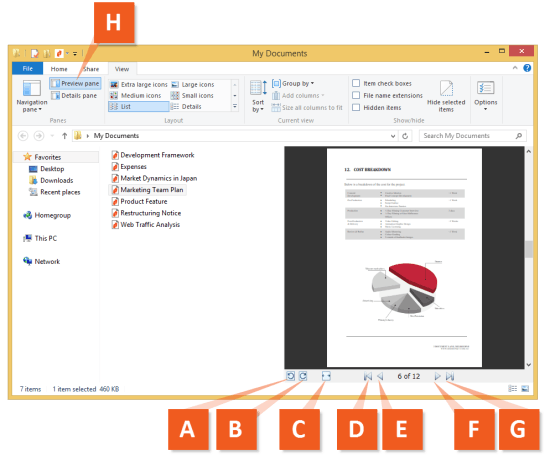
To preview a PDF file in Windows Explorer:
- Open Windows Explorer, and navigate to a folder containing PDF files
- In the Windows Explorer dialog, click Show the preview pane (H). The Preview pane appears on the right side of the window.
- Click on a PDF file for the Preview pane to show the contents of the document. Use the page view options to adjust the view.
Last updated: June 2026