
You can delete a tag if it was applied incorrectly or if content was not properly selected during tagging.
To delete a tag
- Open the PDF in Nitro PDF Pro
- In the left sidebar, select the Tags icon to view the document structure
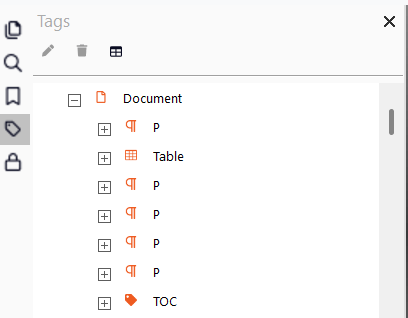
- In the Tags panel, do one of the following:
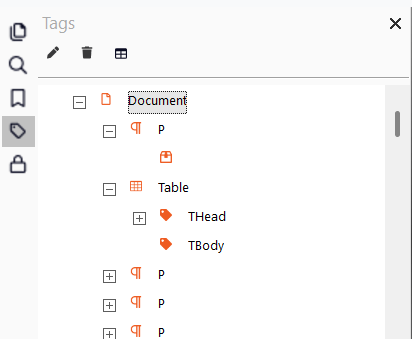
- Select a tag and click the Delete (bin) icon
- Right-click a tag and select Delete Tag
- To save changes:
- Select Save in the top bar, or
- Press Ctrl+S
Last updated: June 2026