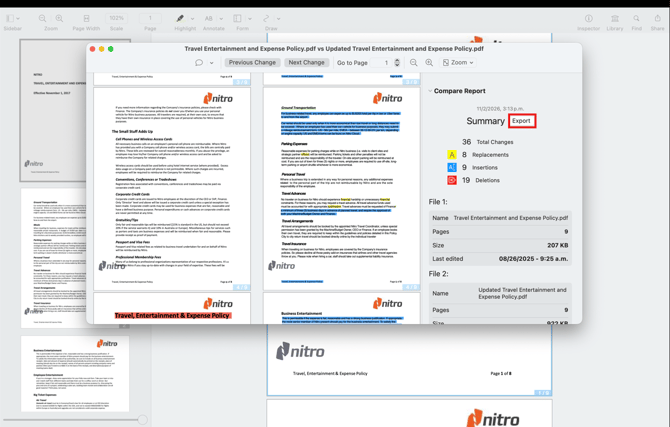
Use Document Comparison to find differences between two documents.
Start Document Comparison
1. Open your document.
2. Click View.
Or press Command + K.
3. Select Compare.
The Compare Documents window opens.
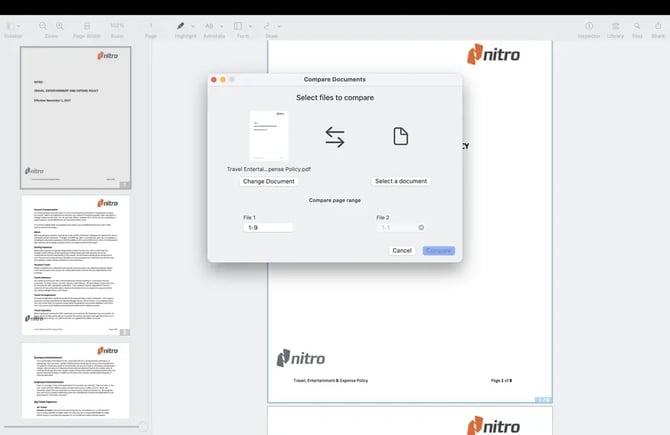
Select Documents
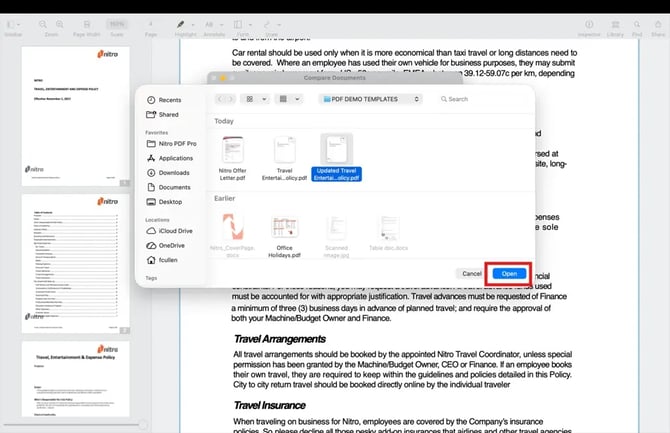
1. Select the document you want to compare.
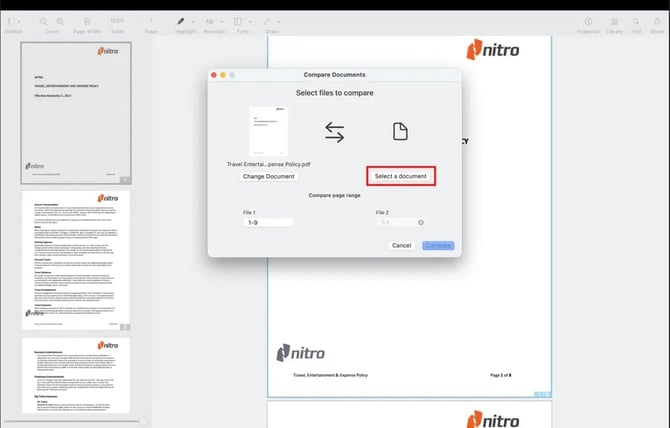
2. Click Open to confirm the selected document.
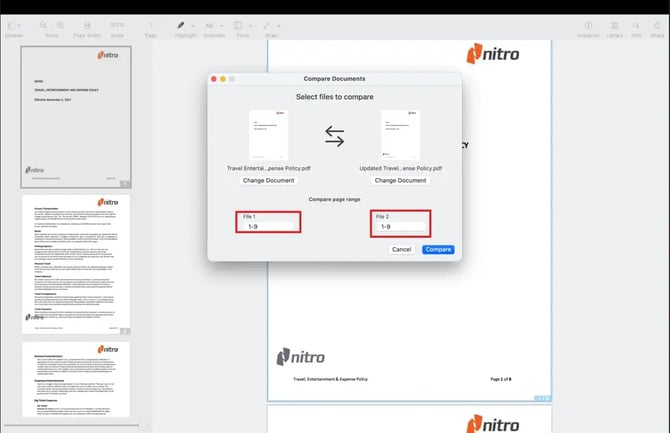
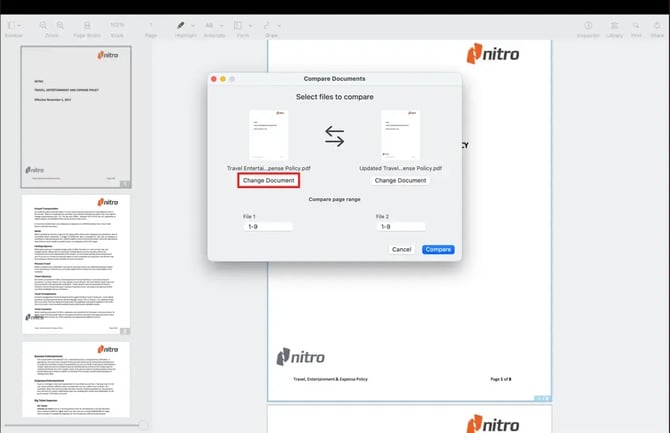
4. To change the document, click Change Document.
Run the Comparison
1. Click Compare to start the comparison.
Or click Cancel to exit.
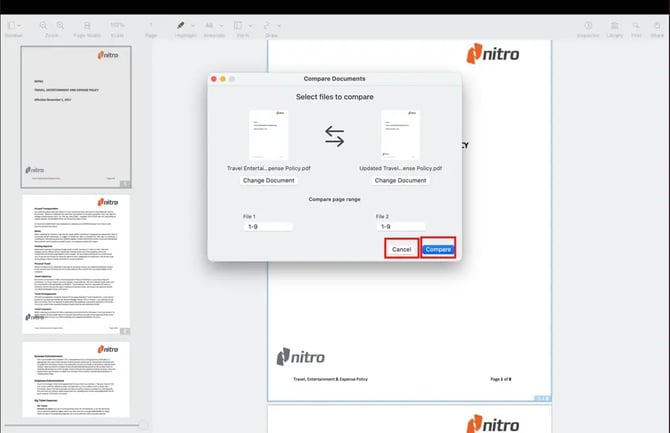
The Compare Documents window opens.
View Comparison Results
-
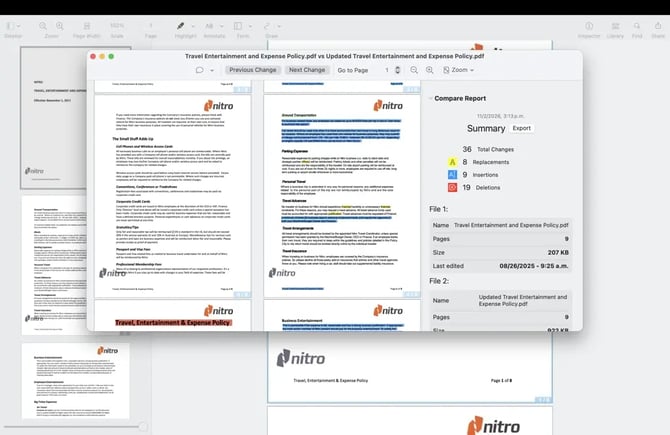
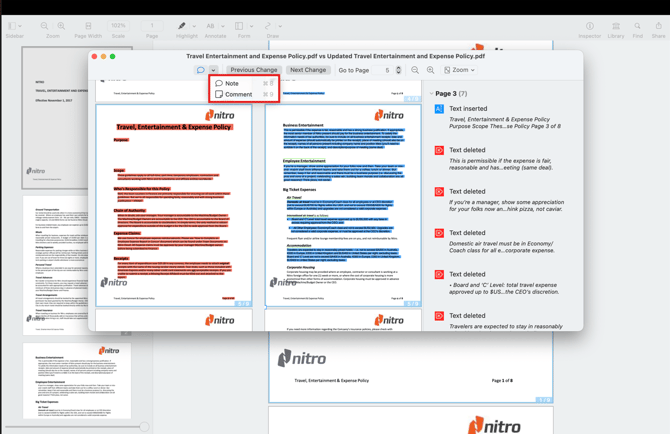
The Summary Report appears on the left side of the window.
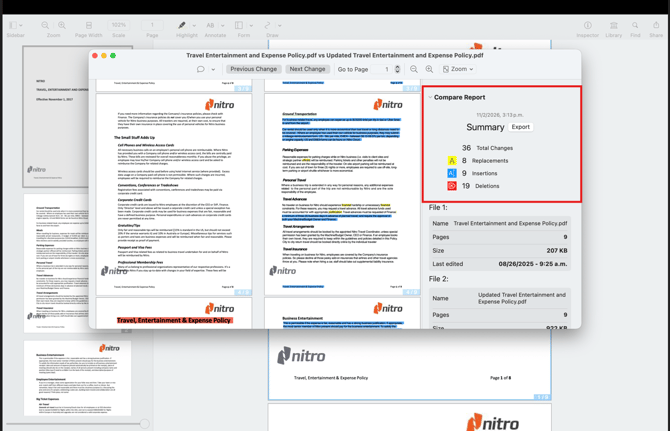
- Click By Page to view differences on specific pages.
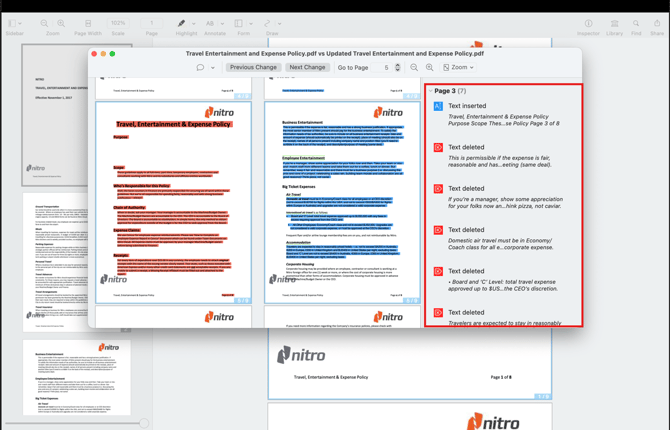
- You can see:
- Comments
- Insertions
- Deletions
- Replacements
Note: Yellow means text replacement, blue means text insertions, and red means text deletions.
Navigate Changes
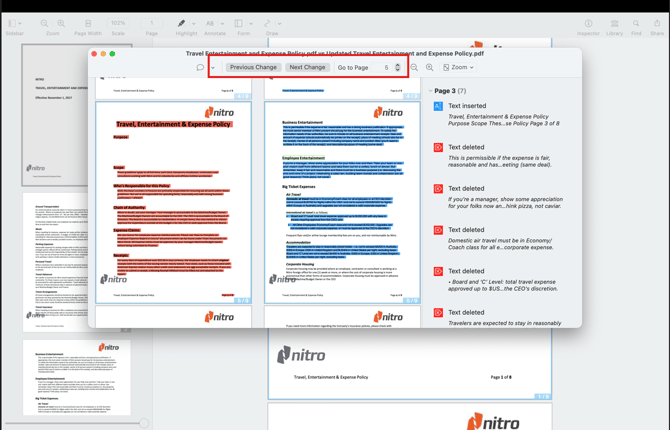
Use the navigation controls to:
-
Go to a specific page
-
Go to the previous change
-
Go to the next change
Add Text or Comments
-
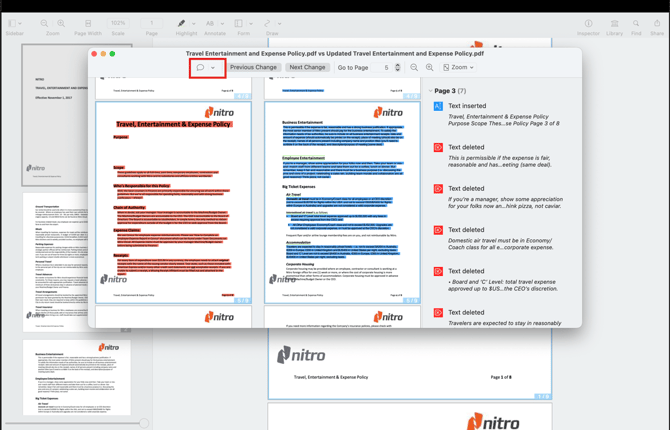
Click the Note icon.
-
Click the arrow.
-
Select AB Text to add text.
Or select Comment to add a comment.
Export the Report
Click Export to generate a Summary Report of the document comparison.